Keyboard Shortcuts
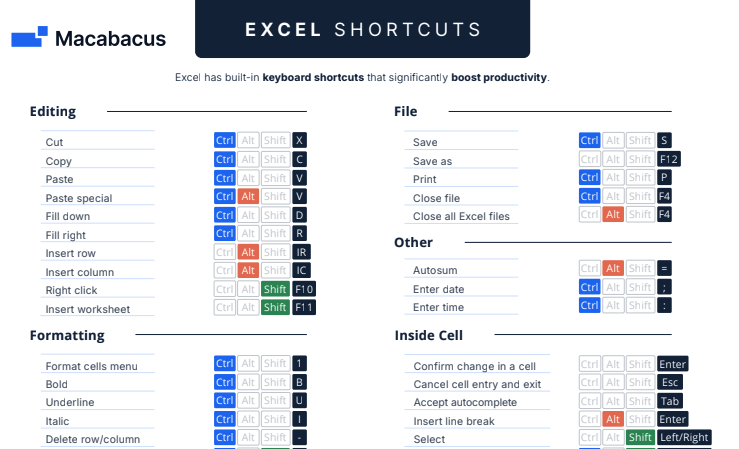
The following keyboard shortcuts and tools are available in Macabacus Macros for Excel®.
Default key strokes are shown below, but most key strokes can be customized. “Utility”, presentated on a scale of 1 to 5, attempts to capture the anticipated frequency of use for each shortcut/tool, and the time savings or expected value each shortcut/tool delivers. When learning these shortcuts, start with those assigned the highest utility. Some shortcuts/tools are not available in Macabacus Lite.
Number Formatting
| Shortcut Name | Key Stroke | Utility | Description |
| Currency Cycle | Ctrl Shift $ | 5 | Cycle through customizable currency formats. |
| General Number Cycle | Ctrl Shift ! | 5 | Cycle through customizable general number formats. |
| Percent Cycle | Ctrl Shift % | 5 | Cycle through customizable percent formats. |
| Multiple Cycle | Ctrl Shift * | 4 | Cycle through customizable multiple formats (e.g. 8.5x). |
| Date Cycle | Ctrl Shift @ | 4 | Cycle through customizable date formats. |
| Binary Cycle | Ctrl Shift Y | 3 | Cycle through customizable binary formats (e.g. Yes/No, Y/N, On/Off, True/False). |
| Year Cycle | Ctrl Shift A | 3 | Cycle through historical, projected, and estimated year formats (e.g. 2010A, 2010P, 2010E). This shortcut overrides a native Excel® shortcut that is rarely, if ever, used. |
| Shortcut Name | Key Stroke | Utility | Description |
| Increase Decimals | Ctrl , | 5 | Increase the number of decimal places shown for numbers in all selected cells. |
| Decrease Decimals | Ctrl . | 5 | Decrease the number of decimal places shown for numbers in all selected cells. |
| Shift Decimal Left | Alt Shift < | 4 | Move decimal point to the left for numbers in selected cells (i.e. divide by 10). |
| Shift Decimal Right | Alt Shift > | 4 | Move decimal point to the right for numbers in selected cells (i.e. multiply by 10). |
| Align Numbers New! | Ctrl Shift ? | 2 | Align the decimal places of numbers in a selection. |
Font & Fill Colors
| Shortcut Name | Key Stroke | Utility | Description |
| Blue-Black Toggle | Ctrl ; | 5 | Toggle font color between blue and black. |
| Font Color Cycle | Ctrl ' | 4 | Cycle through customizable font colors. |
| AutoColor Cycle | Ctrl Alt . | 3 | Cycle through font AutoColor colors. |
| No AutoColor Cycle | Ctrl Alt z | 2 | Cycle through font colors that will not be changed upon an AutoColor operation. |
| Fill Color Cycle | Ctrl Shift K | 2 | Cycle through customizable cell background colors. |
| AutoColor Selection | Ctrl Alt a | 2 | Color fonts of selected cells according to user preferences. |
| AutoColor Sheet | Ctrl Alt s | 2 | Color fonts of entire active worksheet according to user preferences. |
| AutoColor Workbook | Ctrl Alt q | 2 | Color fonts of entire active workbook according to user preferences. |
Cell Alignment
| Shortcut Name | Key Stroke | Utility | Description |
| Center Cycle | Ctrl Shift C | 5 | Cycle through customizable horizontal centering styles. |
| Horizontal Cycle | Ctrl Shift H | 4 | Cycle through customizable horizontal alignment styles. |
| Indent Cycle | Ctrl Shift I | 3 | Cycle through customizable left indent amounts. |
| Vertical Cycle | Ctrl Shift V | 2 | Cycle through customizable vertical alignment styles. |
Border Formatting
| Shortcut Name | Key Stroke | Utility | Description |
| Border Cycle | Ctrl Shift B | 4 | Cycle through customizable border styles. |
| Border Outline | Ctrl Shift & | 4 | Draw a border around selected cells in the color set by the user. Repeat keystroke to change border thickness or remove the border. This shortcut overrides a native Excel® shortcut to draw a border around selected cells, but improves upon the native Excel® functionality. |
| Border None | Ctrl Shift _ | 3 | Remove all borders from selected cells. This is the native Excel® shortcut to remove borders and is only mentioned here for completeness. |
| Border Top | Ctrl Alt Shift Up Arrow | 2 | Apply a top border with the user-specified border color. Repeat keystroke to change border thickness or remove the border. |
| Border Bottom | Ctrl Alt Shift Down Arrow | 2 | Apply a bottom border with the user-specified border color. Repeat keystroke to change border thickness or remove the border. |
| Border Left | Ctrl Alt Shift Left Arrow | 1 | Apply a left border with the user-specified border color. Repeat keystroke to change border thickness or remove the border. |
| Border Right | Ctrl Alt Shift Right Arrow | 1 | Apply a right border with the user-specified border color. Repeat keystroke to change border thickness or remove the border. |
Paintbrush
| Shortcut Name | Key Stroke | Utility | Description |
| Capture Paintbrush Style | Ctrl Alt c | 5 | Capture the style of selected cells for application later, without using the Windows clipboard so that the current Paintbrush style will be available for application even after other copy/cut/paste operations. |
| Apply Paintbrush Style | Ctrl Alt v | 5 | Apply captured Paintbrush style to selected cells. |
Font & Cell Sizing
| Shortcut Name | Key Stroke | Utility | Description |
| Increase Font | Ctrl Shift F | 3 | Increase font size of selected cells. |
| Decrease Font | Ctrl Shift G | 3 | Decrease font size of selected cells. |
| Increase Table Size | Ctrl Alt Shift F |
2 | Increase font size of selected cells and adjust cell sizes proportionally. This differs from simply increasing font size in that the widths of selected cells will grow proportionally to the increase in cell height. |
| Decrease Table Size | Ctrl Alt Shift G |
2 | Decrease font size of selected cells and adjust cell sizes proportionally. This differs from simply decreasing font size in that the widths of selected cells will shrink proportionally to the reduction in cell height. |
Other Formatting
| Shortcut Name | Key Stroke | Utility | Description |
| Underline Cycle | Ctrl Shift U | 3 | Cycle through various underline styles. |
| Case Cycle | Alt Shift C | 2 | Cycle through sentence, title, upper, and lower case for selected cells that contain text. |
| List Cycle | Ctrl Alt Shift L |
2 | Make a bulleted or numbered list from text in selected cells. |
| Leader Dots | Alt Shift L | 2 | Add leader dots to selected cells. Repeat keystroke to remove leader dots. Note that this shortcut will not work in Excel® 2007 when the Developer tab is displayed. |
| Sum Bar | Ctrl Shift M | 2 | Insert sum bars into selected cells. Repeat keystroke to remove sum bars. |
| Footnote | Ctrl Shift ^ | 2 | Superscript numbers at the end of a text string. Superscripts will be applied with or without a single space between the last letter in the string and the footnote number. Repeat keystroke to remove footnote superscript. |
| Wrap Text | Ctrl Shift W | 1 | Toggle on/off text wrapping in selected cells. |
Formulas & Data
| Shortcut Name | Key Stroke | Utility | Description |
| Smart Precedents | Ctrl Shift { | 5 | Opens a dialog box that contains links to all precedent cells relied upon for calculation of the active cell. You can quickly navigate to each precedent cell, including those on other worksheets and in other workbooks. This tool will attempt to open any external workbooks containing precedent cells. |
| Smart Dependents | Ctrl Shift } | 5 | Opens a dialog box that contains links to all dependent cells whose calculation relies upon the active cell. You can quickly navigate to each dependent cell, including those on other worksheets and in other workbooks. This tool will attempt to open any external workbooks containing dependent cells. |
| Last Audited Cell | Ctrl Shift | | 5 | Return to the cell last audited using Smart Precedents/Dependents. |
| Smart Copy Right | Ctrl Shift R | 5 | Similar to the default Fill Right action (Ctrl r), but more efficient. If multiple columns are selected when Smart Fill Right is executed, it ignores blank cells (e.g. spacer columns between years that are intended to be empty) when filling. When a single column is selected (with perhaps multiple rows) when Smart Fill Right is executed, it checks contiguous data in the row above the selection to determine how far right to fill. |
| Smart Copy Down | Ctrl Shift D | 5 | Similar to the default Fill Down action (Ctrl d), but more efficient. If multiple rows are selected when Smart Fill Down is executed, it ignores blank cells (e.g. spacer rows intended to be empty) when filling. When a single row is selected (with perhaps multiple columns) when Smart Fill Right is executed, it checks contiguous data in the column to the left of the selection to determine how far down to fill. |
| Error Wrap | Ctrl Shift E | 4 | Adjust formulas of selected cells to replace errors from existing formulas with custom error messages or values in the form =IF(ISERROR([existing formula]),[custom message or value],[existing formula]) for Excel® 2003, and =IFERROR([existing formula], [custom message or value]) for Excel® 2007. This will not alter cells that already have more than one ISERROR/IFERROR statement in their formulas, or ISERROR/IFERROR statements not in this form. For Excel® 2007, ISERROR formulas in the form just described will be replaced by appropriate IFERROR formulas. |
| Check For Dependents | Ctrl Alt ] | 4 | Check a selected range for cells that are used in the calculation of other cells. Run this tool before deleteing large blocks of cells to ensure that precendent cells are not inadvertently deleted. |
| Convert Formulas | Ctrl F2 | 3 | Convert all cell references in selected cells' formulas to relative or absolute. Repeat keystroke to cycle through relative and absolute references, and back to the original formula. |
| Paste Exact Formulas | Ctrl Alt e | 3 | Paste copied (not cut) cells exactly as they are, preserving original formula cell references. |
| Paste Exact Transpose | Ctrl Alt t | 3 | Paste copied (not cut) cells in a transposed manner, preserving original formula cell references. |
| Date Fill Cycle | Ctrl Alt d | 2 | Fill selected range with dates, cycling through weekdays, months, and years. When the first cell in the selected range contains a date, the fill is based on that date; otherwise, the current date is used. |
Rows & Columns
| Shortcut Name | Key Stroke | Utility | Description |
| Row Height Cycle | Alt Shift Page Up | 4 | Cycle through customizable row heights. |
| Column Width Cycle | Ctrl Alt Shift Page Up | 4 | Cycle through customizable column widths. |
| Insert Row | Alt Shift Insert | 4 | Insert row above selected cell(s). |
| Insert Column | Ctrl Alt Shift Insert | 4 | Insert column to the left of selected cell(s). |
| Delete Row | Alt Shift Delete | 4 | Delete selected row(s). Selection of entire rows to be deleted is not required. |
| Delete Column | Ctrl Alt Shift Delete | 4 | Delete selected column(s). Selection of entire columns to be deleted is not required. |
| Group Row | Alt Shift Right Arrow | 3 | Group selected rows. Selection of entire rows to be grouped is not required. |
| Group Column | Ctrl Alt Shift Down Arrow | 3 | Group selected columns. Selection of entire columns to be grouped is not required. |
| Ungroup Row | Alt Shift Left Arrow | 3 | Ungroup selected rows. Selection of entire rows to be ungrouped is not required, but selection of adjacent rows is. |
| Ungroup Column | Ctrl Alt Shift Up Arrow | 3 | Ungroup selected columns. Selection of entire columns to be ungrouped is not required, but selection of adjacent columns is. |
| Hide Row | Alt Shift Home | 2 | Collapse selected rows if they are already grouped. Otherwise, group and collapse selected rows. |
| Hide Column | Ctrl Alt Shift Home | 2 | Collapse selected columns if they are already grouped. Otherwise, group and collapse selected rows. |
| Unhide Row | Alt Shift End | 2 | Expand grouped and collapsed rows in the selected range. |
| Unhide Column | Ctrl Alt Shift End | 2 | Expand grouped and collapsed columns in the selected range. |
| Expand All Rows | Alt Shift + | 2 | Expand all grouped rows in the active worksheet. Selection of grouped rows is not required. |
| Expand All Columns | Ctrl Alt Shift + |
2 | Expand all grouped columns in the active worksheet. Selection of grouped columns is not required. |
| Collapse All Rows | Alt Shift _ | 2 | Collapse all grouped rows in the active worksheet. Selection of grouped rows is not required. |
| Collapse All Columns | Ctrl Alt Shift _ |
2 | Collapse all grouped columns in the active worksheet. Selection of grouped columns is not required. |
| Auto Row Height | Alt Shift Page Down |
2 | Auto-fit row heights in selected range to cell content. |
| Auto Column Width | Ctrl Alt Shift Page Down | 2 | Auto-fit column widths in selected range to cell content. |
| Smart Hide | Ctrl Alt h | 3 | Replace hidden rows/columns with grouped and collapsed rows/columns in the active worksheet. Grouping and collapsing rows/columns is a better practice than simply hiding them (e.g. by setting their height/width to zero). |
Navigation
| Shortcut Name | Key Stroke | Utility | Description |
| Add Bookmark | Ctrl Alt b | 4 | Add a Macabacus bookmark to the selected range. |
| Next Bookmark | Ctrl Alt n | 4 | Go to the next Macabacus bookmark in sequence. |
| Previous Bookmark | Ctrl Alt p | 4 | Go to the previous Macabacus bookmark in sequence. |
| Clear Bookmarks | Ctrl Alt x | 4 | Remove all Macabacus bookmarks from the active workbook. |
| First Worksheet | Ctrl Alt Home | 3 | Go to the first worksheet in the active workbook. |
| Last Worksheet | Ctrl Alt End | 3 | Go to the last worksheet in the active workbook. |
| Next Worksheet Loop | Ctrl Alt Page Down |
3 | Continue looping through worksheets in the active workbook, even once the last worksheet is reached. |
| Previous Worksheet Loop | Ctrl Alt Page Up |
3 | Continue looping through worksheets in the active workbook, even once the first worksheet is reached. |
| Go To Min | Ctrl Alt Shift , |
2 | Go to the cell with the minimum value in the selected range. When only a single cell is selected, go to the cell with the minimum value in the contiguous range. |
| Go To Max | Ctrl Alt Shift . |
2 | Go to the cell with the maximum value in the selected range. When only a single cell is selected, go to the cell with the maximum value in the contiguous range. |
View
| Shortcut Name | Key Stroke | Utility | Description |
| Toggle Gridlines | Alt Shift G | 3 | Toggle gridlines on/off for the active worksheet. |
| Zoom In | Ctrl Alt = | 3 | Increase magnification of active worksheet by a customizable increment. |
| Zoom Out | Ctrl Alt - | 3 | Decrease magnification of active worksheet by a customizable decrement. |
Utilities & Other
| Shortcut Name | Key Stroke | Utility | Description |
| Quick Save | Ctrl Shift S | 4 | Quickly save a workbook without recalculating, regardless of calculation settings. A very useful tool when saving large models with many tables. |
| Clean Up Number Formats | Ctrl Alt Shift O |
3 | Remove unused custom number formats from the active workbook. |
| Clean Up Defined Names | Ctrl Alt Shift N |
3 | Remove unused defined names from the active workbook. |
| Clean Up Used Ranges | Ctrl Alt Shift R |
2 | Reset used ranges of worksheets in the active workbook to the area bound by the bottom-right-most data, thereby reducing file size. |
| Tool Name | Key Stroke | Utility | Description |
| Fix Selected Comments | Ctrl Alt Shift X | 2 | Restore selected cells' comments to their default positions with respect to their parent cells, and resize them to fit content. When multiple worksheets are selected, all comments on those sheets will be fixed. |
| Fix All Comments | N/A | 2 | Restore all comments in a workbook to their default positions with respect to their parent cells, and resize them to fit content. |
| Delete Empty Comments in Workbook |
N/A | 2 | Delete empty comments in a workbook that contain nothing more than the author's user name. |
| Delete All Comments in Workbook |
N/A | 2 | Remove all comments from a workbook. |